root.
The lab is a set of Docker containers on one Linux host, all on a shared network, all fronted by Caddy —
only Caddy is exposed to the internet (ports 80/443). Secrets live in an .env file next to the
compose file and are never hard-coded.
4.0 Host, Docker & firewall
Install Docker Engine from Docker's official repository, lock the firewall to 22/80/443, and create the shared network.
apt-get update && apt-get -y upgrade
apt-get -y install ca-certificates curl gnupg ufw fail2ban

# Docker Engine (official repository)
install -m 0755 -d /etc/apt/keyrings
curl -fsSL https://download.docker.com/linux/debian/gpg -o /etc/apt/keyrings/docker.asc
chmod a+r /etc/apt/keyrings/docker.asc
echo "deb [arch=$(dpkg --print-architecture) signed-by=/etc/apt/keyrings/docker.asc] \
https://download.docker.com/linux/debian $(. /etc/os-release && echo $VERSION_CODENAME) stable" \
  > /etc/apt/sources.list.d/docker.list
apt-get update
apt-get -y install docker-ce docker-ce-cli containerd.io docker-buildx-plugin docker-compose-plugin
systemctl enable --now dockerufw default deny incoming
ufw default allow outgoing
ufw allow 22/tcp # admin SSH
ufw allow 80/tcp # ACME + HTTP→HTTPS redirect
ufw allow 443/tcp # HTTPS consoles
ufw --force enable
docker network create ciam-net
mkdir -p /opt/ciam-lab && cd /opt/ciam-labdocker --version and docker compose version both print; ufw status shows only 22/80/443; docker run --rm hello-world prints "Hello from Docker!".Generate the secrets file
One .env holds every password. Generate strong values once:
gen() { openssl rand -base64 24 | tr -d '/+=' | cut -c1-20; }
cat > .env <<EOF
LAB_DOMAIN=lab.example.com
LDAP_ADMIN_PASSWORD=$(gen)
LDAP_CONFIG_PASSWORD=$(gen)
LDAP_READONLY_PASSWORD=$(gen)
KC_DB_PASSWORD=$(gen)
KC_ADMIN_PASSWORD=$(gen)
KC_PORTAL_CLIENT_SECRET=$(gen)
MP_DB_PASSWORD=$(gen)
MP_ADMIN_PASSWORD=$(gen)
PORTAL_SECRET_KEY=$(gen)
GUAC_DB_PASSWORD=$(gen)
TARGET_SSH_PASSWORD=$(gen)
EOF
chmod 600 .env
4.0a What you are actually building
Before the first command, it is worth seeing the shape of the thing. Everything in this chapter runs on
one machine: a Netcup KVM virtual server called iam-lab.golonex.local. On that
machine, seventeen Docker containers sit on a single private bridge network — and exactly one of
them is reachable from the internet.
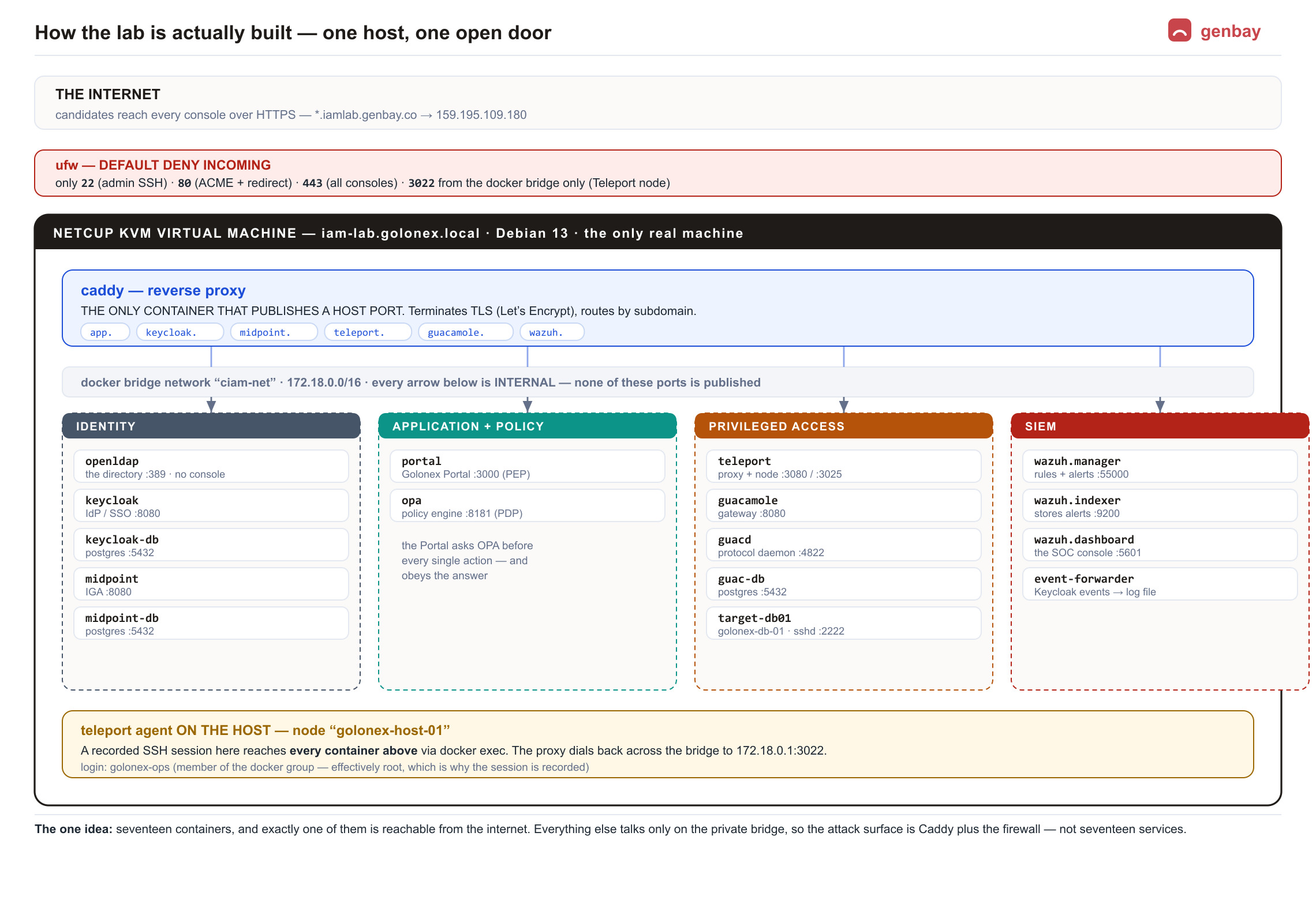
How a request actually reaches a tool
Take https://midpoint.iamlab.genbay.co. Nothing on the internet can address the midPoint
container — it publishes no host port at all. The journey is:
- DNS resolves
*.iamlab.genbay.coto the server's single public address. - ufw allows the connection only because it is on port 443.
- Caddy is the only container with a published port. It terminates TLS with a Let's Encrypt certificate and looks at the hostname.
- Caddy proxies the request over the private bridge to
midpoint:8080— a name that only resolves insideciam-net. - midPoint answers. It never knew the request came from outside.
4.1 Caddy — the front door
One container terminates HTTPS and routes each subdomain to a tool. It is the only service that publishes host ports.
  caddy:
    image: caddy:2.11-alpine
    container_name: caddy
    restart: unless-stopped
    ports: ["80:80", "443:443", "443:443/udp"]
    environment:
      LAB_DOMAIN: ${LAB_DOMAIN}
    volumes:
      - ./caddy/Caddyfile:/etc/caddy/Caddyfile:ro
      - ./caddy/site:/srv:ro
      - caddy-data:/data
networks: [ciam-net]{
# while DNS is not yet pointed here, serve an internal CA cert.
# Delete this line once *.{$LAB_DOMAIN} resolves, then reload for Let's Encrypt.
local_certs
}
keycloak.{$LAB_DOMAIN} { reverse_proxy keycloak:8080 }
midpoint.{$LAB_DOMAIN} { redir / /midpoint/ 302
reverse_proxy midpoint:8080 }
app.{$LAB_DOMAIN} { reverse_proxy portal:3000 }
teleport.{$LAB_DOMAIN} { reverse_proxy https://teleport:3080 {
transport http { tls_insecure_skip_verify } } }
guacamole.{$LAB_DOMAIN} { reverse_proxy guacamole:8080 }
wazuh.{$LAB_DOMAIN} { reverse_proxy https://wazuh.dashboard:5601 {
transport http { tls_insecure_skip_verify } } }curl -I http://… returns a 308 redirect to HTTPS; a browser reaches each subdomain (accept the internal-CA warning until DNS + Let's Encrypt are set up).4.2 OpenLDAP — the directory
Runs from the osixia/openldap image with base domain golonex.local. LDIF files
under openldap/bootstrap/ create the OUs, seed users and groups on first start.
  openldap:
    image: osixia/openldap:1.5.0
    container_name: openldap
    restart: unless-stopped
    command: ["--copy-service"]        # apply the custom bootstrap LDIF
    environment:
      LDAP_ORGANISATION: "Golonex"
      LDAP_DOMAIN: "golonex.local"
      LDAP_ADMIN_PASSWORD: ${LDAP_ADMIN_PASSWORD}
      LDAP_CONFIG_PASSWORD: ${LDAP_CONFIG_PASSWORD}
      LDAP_READONLY_USER: "true"
      LDAP_READONLY_USER_USERNAME: "readonly"
      LDAP_READONLY_USER_PASSWORD: ${LDAP_READONLY_PASSWORD}
    volumes:
      - ldap-data:/var/lib/ldap
      - ldap-config:/etc/ldap/slapd.d
      - ./openldap/bootstrap:/container/service/slapd/assets/config/bootstrap/ldif/custom:ro
networks: [ciam-net]docker compose up -d openldap
# bind as the read-only account and list the tree:
docker exec openldap ldapsearch -x -H ldap://localhost \
-D cn=readonly,dc=golonex,dc=local -w "$LDAP_READONLY_PASSWORD" \
-b dc=golonex,dc=local dn-x with no bind DN) returns "No such object" — anonymous read is correctly denied.4.3 Keycloak — the identity provider
Keycloak with a PostgreSQL database. After first start, create the golonex realm, add LDAP
user federation (read-only bind), and an OIDC client for the Portal — all via kcadm.sh.
  keycloak-db:
    image: postgres:17-alpine
    container_name: keycloak-db
    restart: unless-stopped
    environment:
      POSTGRES_DB: keycloak
      POSTGRES_USER: keycloak
      POSTGRES_PASSWORD: ${KC_DB_PASSWORD}
    volumes: [kc-pg-data:/var/lib/postgresql/data]
    networks: [ciam-net]

  keycloak:
    image: quay.io/keycloak/keycloak:26.7
    container_name: keycloak
    restart: unless-stopped
    command: ["start"]
    environment:
      KC_DB: postgres
      KC_DB_URL: jdbc:postgresql://keycloak-db:5432/keycloak
      KC_DB_USERNAME: keycloak
      KC_DB_PASSWORD: ${KC_DB_PASSWORD}
      KC_HOSTNAME: https://keycloak.${LAB_DOMAIN}
      KC_HTTP_ENABLED: "true"
      KC_PROXY_HEADERS: xforwarded
      KC_BOOTSTRAP_ADMIN_USERNAME: admin
      KC_BOOTSTRAP_ADMIN_PASSWORD: ${KC_ADMIN_PASSWORD}
    depends_on: [keycloak-db, openldap]
networks: [ciam-net]KC="docker exec keycloak /opt/keycloak/bin/kcadm.sh"
$KC config credentials --server http://localhost:8080 \
--realm master --user admin --password "$KC_ADMIN_PASSWORD"
# realm with brute-force protection and event logging
$KC create realms -s realm=golonex -s enabled=true \
-s bruteForceProtected=true -s eventsEnabled=true -s adminEventsEnabled=true
# LDAP user federation (read-only; midPoint is the writer)
REALM_ID=$($KC get realms/golonex --fields id --format csv --noquotes)
$KC create components -r golonex -s name=golonex-ldap -s providerId=ldap \
-s providerType=org.keycloak.storage.UserStorageProvider -s parentId=$REALM_ID \
-s 'config.connectionUrl=["ldap://openldap:389"]' \
-s 'config.bindDn=["cn=readonly,dc=golonex,dc=local"]' \
-s "config.bindCredential=[\"$LDAP_READONLY_PASSWORD\"]" \
-s 'config.usersDn=["ou=people,dc=golonex,dc=local"]' \
-s 'config.usernameLDAPAttribute=["uid"]' -s 'config.editMode=["READ_ONLY"]' \
-s 'config.importEnabled=["true"]'
LDAP_ID=$($KC get components -r golonex -q name=golonex-ldap --fields id --format csv --noquotes)
$KC create user-storage/$LDAP_ID/sync?action=triggerFullSync -r golonexgroups; a wrong password is rejected:
curl -sk -d client_id=golonex-portal -d client_secret="$KC_PORTAL_CLIENT_SECRET" \
  -d grant_type=password -d username=bob.builder -d password='Welcome2026!' -d scope=openid \
  https://keycloak.${LAB_DOMAIN}/realms/golonex/protocol/openid-connect/token
4.4 midPoint — the IGA engine
midPoint with its own PostgreSQL (native schema loaded from the image's SQL). You then import the objects: the two resources (HR CSV source, OpenLDAP target), the roles, the user template and the tasks.
  midpoint-db:
    image: postgres:16-alpine
    container_name: midpoint-db
    restart: unless-stopped
    environment:
      POSTGRES_DB: midpoint
      POSTGRES_USER: midpoint
      POSTGRES_PASSWORD: ${MP_DB_PASSWORD}
    volumes:
      - mp-pg-data:/var/lib/postgresql/data
      - ./midpoint/sql:/docker-entrypoint-initdb.d:ro   # native repo schema
    networks: [ciam-net]

  midpoint:
    image: evolveum/midpoint:4.10.3
    container_name: midpoint
    restart: unless-stopped
    command: ["/opt/midpoint/bin/midpoint.sh", "container"]
    environment:
      MP_SET_midpoint_repository_database: postgresql
      MP_SET_midpoint_repository_jdbcUrl: jdbc:postgresql://midpoint-db:5432/midpoint
      MP_SET_midpoint_repository_jdbcUsername: midpoint
      MP_SET_midpoint_repository_jdbcPassword: ${MP_DB_PASSWORD}
      MP_SET_midpoint_administrator_initialPassword: ${MP_ADMIN_PASSWORD}
    depends_on: [midpoint-db, openldap]
networks: [ciam-net]MP=http://localhost:8080/midpoint/ws/rest
AUTH="administrator:$MP_ADMIN_PASSWORD"
for f in 10-resource-hr-csv 11-resource-ldap 20-role-employee \
22-role-finance-ap-clerk 23-role-finance-ap-approver \
30-object-template-user 40-task-hr-import 41-task-ldap-reconciliation; do
coll=$(echo $f | grep -q resource && echo resources || (echo $f | grep -q task && echo tasks || \
(echo $f | grep -q template && echo objectTemplates || echo roles)))
docker exec -i midpoint curl -s -u "$AUTH" -H 'Content-Type: application/xml' \
-X POST "$MP/$coll?options=overwrite" --data-binary @- < midpoint/objects/$f.xml
done5ecr3t) is rejected while your strong one works.4.5 OPA + Golonex Portal — decision & enforcement
OPA loads a Rego policy (RBAC + ABAC + SoD) and emits decision logs. The Portal (a small Flask app) is built into its own image; it authenticates via Keycloak (OIDC) and calls OPA per action.
  opa:
    image: openpolicyagent/opa:1.10.0
    container_name: opa
    restart: unless-stopped
    command: ["run","--server","--addr=0.0.0.0:8181",
              "--set=decision_logs.console=true","/policies"]
    volumes: ["./opa/policies:/policies:ro"]
    networks: [ciam-net]

  portal:
    build: ./demo-app
    image: golonex/portal:1.0
    container_name: portal
    restart: unless-stopped
    environment:
      LAB_DOMAIN: ${LAB_DOMAIN}
      OIDC_CLIENT_ID: golonex-portal
      OIDC_CLIENT_SECRET: ${KC_PORTAL_CLIENT_SECRET}
      PORTAL_SECRET_KEY: ${PORTAL_SECRET_KEY}
      OPA_URL: http://opa:8181/v1/data/golonex/portal/decision
    volumes: ["./midpoint/hr:/data/hr"]   # the HRIS page edits the same feed midPoint imports
    depends_on: [keycloak, opa]
networks: [ciam-net]# unit tests
docker run --rm -v /opt/ciam-lab/opa/policies:/p:ro openpolicyagent/opa:1.10.0 test /p -v
# a clerk may create an invoice but not approve a payment:
docker exec portal python3 -c 'import requests,json; \
print(requests.post("http://opa:8181/v1/data/golonex/portal/decision", \
json={"input":{"groups":["finance-ap-clerk"],"action":"invoice.create"}}).json())'opa test passes; decisions return the expected allow/deny with a reason; the Portal's /login redirects to Keycloak.4.6 Teleport — privileged access (PAM)
Built into a small Debian image carrying the Teleport binary (so recorded sessions have a real shell). Runs
all-in-one (auth + proxy + node) and registers itself as the managed server golonex-app-01.
Local users authenticate with a password and an OTP second factor.
  teleport:
    build: ./teleport            # debian + teleport 18.x binary
    image: golonex/teleport:18
    container_name: teleport
    restart: unless-stopped
    hostname: golonex-app-01
    volumes:
      - ./teleport/teleport.yaml:/etc/teleport/teleport.yaml:ro
      - teleport-data:/var/lib/teleport
networks: [ciam-net]# create the PAM role, then a local user who sets password + OTP via a one-time link:
docker exec teleport tctl create -f /etc/teleport/role-ops.yaml
docker exec teleport tctl users add golonex-admin \
--roles=golonex-pam-ops,access,editor --logins=golonex-ops --ttl=48hdocker exec teleport tctl status shows a healthy cluster; tctl nodes ls lists golonex-app-01; the web UI loads through Caddy; a session can be replayed under Session Recordings.4.7 Apache Guacamole — recorded gateway
Three containers — guacd, a PostgreSQL database (schema generated from the image), and the web
app — plus a target server running OpenSSH.
mkdir -p guacamole/initdb
docker run --rm guacamole/guacamole:1.6.0 /opt/guacamole/bin/initdb.sh --postgresql \
> guacamole/initdb/01-schema.sql guac-db:
image: postgres:16-alpine
environment:
POSTGRES_DB: guacamole
POSTGRES_USER: guacamole
POSTGRES_PASSWORD: ${GUAC_DB_PASSWORD}
volumes:
- guac-pg-data:/var/lib/postgresql/data
- ./guacamole/initdb:/docker-entrypoint-initdb.d:ro
networks: [ciam-net]
guacd:
image: guacamole/guacd:1.6.0
volumes: [guac-recordings:/recordings]
networks: [ciam-net]
guacamole:
image: guacamole/guacamole:1.6.0
environment:
GUACD_HOSTNAME: guacd
POSTGRESQL_HOSTNAME: guac-db
POSTGRESQL_DATABASE: guacamole
POSTGRESQL_USER: guacamole
POSTGRESQL_PASSWORD: ${GUAC_DB_PASSWORD}
WEBAPP_CONTEXT: ROOT
depends_on: [guac-db, guacd]
networks: [ciam-net]
target-db01:
image: lscr.io/linuxserver/openssh-server:latest
hostname: golonex-db-01
environment:
USER_NAME: golonex-ops
USER_PASSWORD: ${TARGET_SSH_PASSWORD}
PASSWORD_ACCESS: "true"
SUDO_ACCESS: "true"
networks: [ciam-net]guacadmin/guacadmin is rejected after you change it; a recorded SSH connection to golonex-db-01 opens a terminal and appears under recordings.4.8 Wazuh — the SIEM
Deployed from the official single-node wazuh-docker (indexer + manager + dashboard) with
generated certificates and strong passwords replacing the defaults. Adapt it for this lab:
join the shared network, publish no host ports (Caddy fronts the dashboard), and set
vm.max_map_count.
echo 'vm.max_map_count=262144' > /etc/sysctl.d/99-wazuh.conf
sysctl -p /etc/sysctl.d/99-wazuh.conf

mkdir -p /opt/ciam-lab/wazuh && cd /opt/ciam-lab/wazuh
BASE=https://raw.githubusercontent.com/wazuh/wazuh-docker/v4.14.7/single-node
curl -fsSL $BASE/docker-compose.yml -o docker-compose.yml
curl -fsSL $BASE/generate-indexer-certs.yml -o generate-indexer-certs.yml
docker compose -f generate-indexer-certs.yml run --rm generator # TLS certsadmin/SecretPassword is rejected; the manager's analysis engine is running; the dashboard loads through Caddy.4.9 Event forwarder — the SIEM glue
A tiny Python service polls Keycloak's event API and writes each authentication event as a JSON line to a shared file the Wazuh manager reads; the Portal writes its authorization events to the same place. A custom Wazuh rule then fires the post-termination-login alert.
  event-forwarder:
    build: ./event-forwarder
    image: golonex/event-forwarder:1.0
    container_name: event-forwarder
    restart: unless-stopped
    environment:
      KC_INTERNAL: http://keycloak:8080
      KC_ADMIN_USER: admin
      KC_ADMIN_PASSWORD: ${KC_ADMIN_PASSWORD}
      OUT_DIR: /var/log/golonex
    volumes: ["./siem-logs:/var/log/golonex"]
    depends_on: [keycloak]
networks: [ciam-net]4.10 Bring it all up
cd /opt/ciam-lab && docker compose up -d          # the main stack
cd /opt/ciam-lab/wazuh && docker compose up -d    # the SIEM
docker compose ps                                    # everything "Up / healthy"